How to add a website language selector: 2 methods

When you have a multilingual site, you’ll want to have a language selector (sometimes called a language switcher) on your website. This lets your visitors see which translated site versions you offer, so they can pick the one that’s best for them.
A language selector looks like this screenshot:
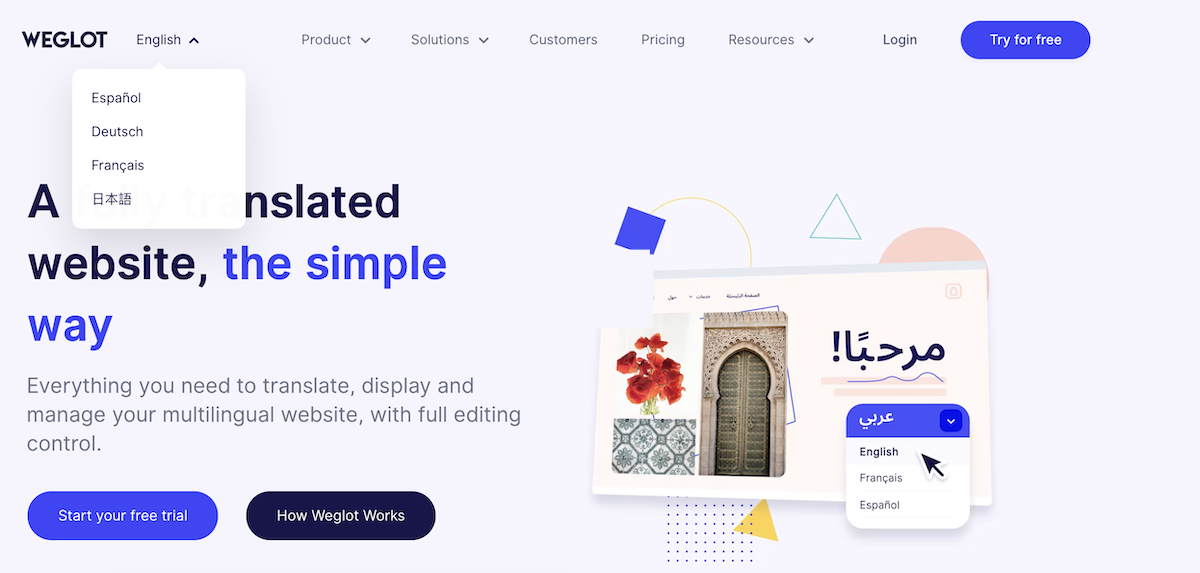
But there’s some variety of how it’s displayed, including where your language selector is located (header, footer, etc.) and whether or not there are icons that display country flags.
The good news is that adding a language selector doesn’t have to be difficult. To show you what we mean, we go over the two main methods:
1. Designing and developing your own language selector tool from scratch.
2. Using translation software that comes with a built-in (and customizable) language selector.
In this post, we look at both options in more detail.
Weglot is an all-in-one translation software that lets you quickly and accurately translate any website. Weglot can translate your site into 100+ languages. Plus, you can easily access your translations through our translation management platform. Try for free
Designing and developing your website’s language selector (tips & best practices)
If you already have a multilingual site and you just need to add a language selector, then you might want to go the route of having a designer mock up a design that your developer can create. Here are some tips to help you with the overall user experience:
- Make it easy to find. Let’s say you have a site that’s available in English and French. You get a French-speaking visitor to your English site. They’re likely to look at the main navigational areas (header, footer) to see if you have a French version of your site available. If they don’t see a language selector, they’ll assume you don’t have a French site, and they’ll bounce off. This hurts your business. So, a best practice is to know where your visitors will be looking for a language selector and to put it there.
- Keep in mind that displaying a flag icon may not always be the best choice. It’s common to think that a flag is a nice visual representation of a language, but that’s not the whole story.
Some things to consider: To the United States, English is associated with the American flag, not the Union Jack. Brazilians associate Portuguese with the Brazilian flag, not Portugal’s flag. Spanish speakers in Spain associate Spanish with the Spanish flag, not the Mexican flag.
Note: You can, of course, use flags. They do look nice in terms of UX design, and they can work for your use case, it just depends on who your target audience is.
- Keep in mind how many translated versions you plan on offering down the line. For example, you may not want to do a drop-down menu if you’re only going to translate your site into one other language. However, if you have plans to translate it into three or four different languages, then a drop-down menu will look cleaner.
- Keep it practical. Yes, you want your language selector to fit in with your site’s design, but don’t forget the point of this design is functionality. You don’t want to confuse visitors—you want it very clear that your site is available in other languages.
Again, designing and developing your own language selector makes sense if you have a multilingual site and you’re not planning on using software to manage your translations.
But if you’re using translation software, then it’s not necessary. This is because most website translation software will let you add a language selector. (We recommend using translation software to translate your site and keep translations up-to-date.)
In the following section, we explain how to customize the language selector on your website when you use Weglot’s translation software.
Using website translation software to customize your website’s language selector
Whether you’re in the process of creating a multilingual site or already have one up and running, you can use Weglot to improve how you translate your content and manage your overall translation process—with the added benefit that you get an easy-to-customize language selector.
First, some basics about Weglot:
- You can easily add Weglot to any CMS (WordPress, Squarespace, Wix, Shopify, and any custom-built platform).
- Weglot uses leading translation providers—from Google Translate to DeepL—to quickly and efficiently translate all of the content on your website.
- You can translate your content into 100+ different languages. This includes right-to-left languages like Arabic and Hebrew.
- For each translation, Weglot sets up unique URLs. For example, weglot.com is our English site, while weglot.com/fr is our French site.
- All translated versions of your site are always kept up-to-date with any content changes. Weglot uses automatic content detection to notice any changes to content on your original site and update all translated versions of your site accordingly.
- You have complete control over your translations, so you can edit them, if necessary. You can also view your translations live on your site with a visual editor, so you can make changes to help your translated content fit your site’s design and layout.
Ready to get started? Try Weglot’s 10-day free trial and see how easily you can have a multilingual website up and running Try for free
More of a visual learner? Here’s a quick video that explains how Weglot works and how it can make your life easier when managing multilingual sites:
Most importantly, you can customize your language selection with Weglot. Each website translated by Weglot gets a language selector, so your visitors will be aware you offer translated versions of your content.
This brings us back here:
But with Weglot, you’re not stuck with just one design. From your dashboard, you can customize how your language switcher looks.
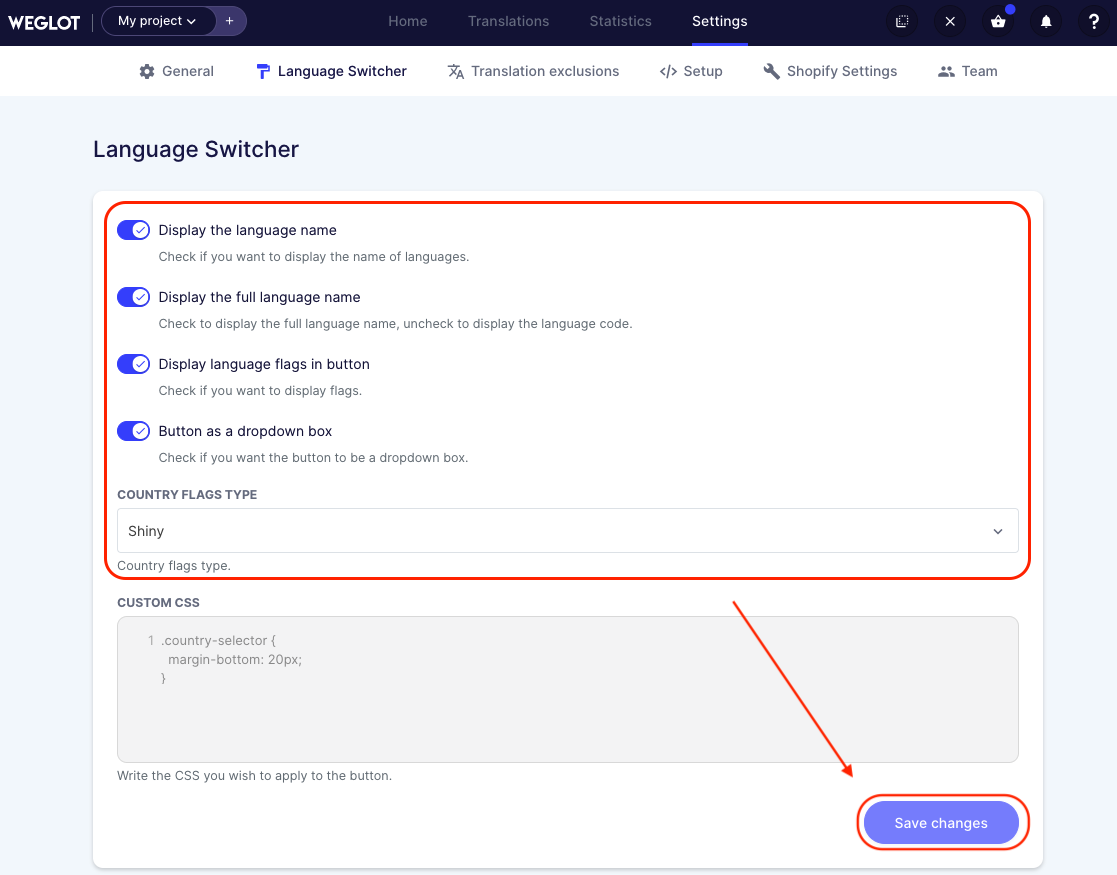
You can choose whether you will:
- Display the language name, or just the abbreviation/language code (such as EN for English, ES for Spanish, FR for French, and so on).
- Display a flag icon.
- Display the language selector as a drop-down box.
You can also pick which type of country flags you use (such as shiny or matte), and there’s a spot to add additional custom CSS (if you want to make further edits so the language selector further matches your branding).
With Weglot, your language selector defaults to the bottom right of your website, but you can change the position of your selector if you’d like (top right, bottom left, etc.).
The process will look slightly different depending on your CMS, but here are two video tutorials, to provide some context:
Changing the position of your language selector when you’re using WordPress:
Changing the position of your language selector when you’re using Shopify:
If you added Weglot to your site with code, then you can still change the position of your language selector by following these instructions.
A quick recap: How to customize your website language selector
There are two main ways to put a website language selector on your site:
- Design and develop your own. This isn’t a huge project, but it’s only necessary if you’re not currently using translation software to manage your multilingual site. When designing your language selector, keep in mind that it should be: (1) easy to find, (2) clear on what languages are offered, and (3) thematically similar to your design.
- Use website translation software. Any website translation software worth its salt will give you a customizable website language selector feature. Above, we looked at how you can customize your selector when you use Weglot’s translation software, including adding flags, displaying the full language name, and choosing where on your site your selector goes.
If you’re ready to let Weglot simplify your translation project for you, start your free trial today.

Time to open your website to the world
Get started for free and have a multilingual website up and running in minutes.

Ready to display your website in multiple languages?
Install Weglot on your website in minutes and manage your translations easily.

Share on